
Appearance
Design
Design turns an interface idea into something you can compare, edit, and try before implementation. Keep the proposals beside your conversation, refine a direction together, then send the reviewed design to your agent for coding.
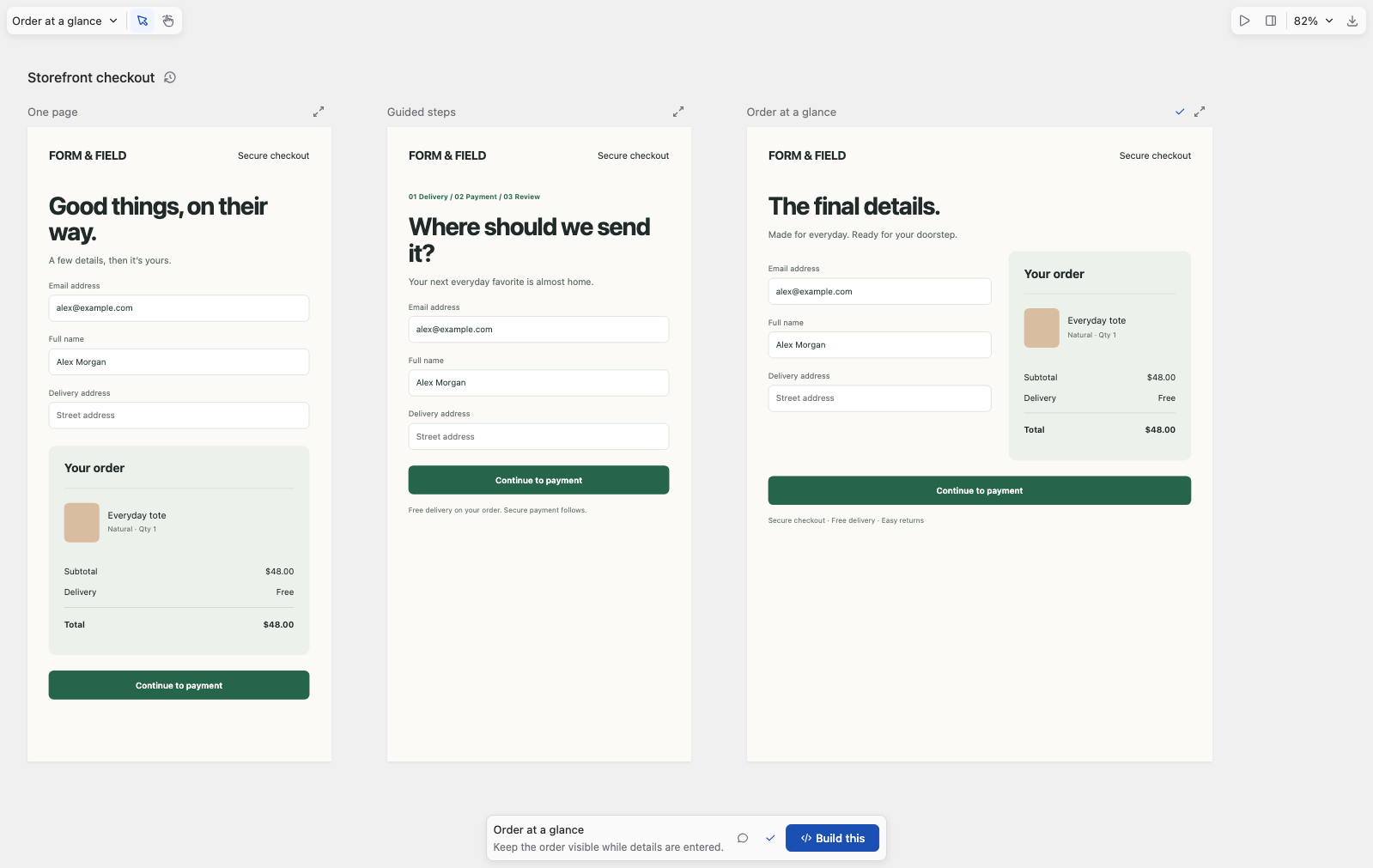
Use Design for websites, app screens, components, and clickable flows. Use Visualize for diagrams and explanations, or the Browser to check a running application.
Start an exploration
Enter /design with what you want to explore, choose + → Design in the composer, or search for Open Design in the command palette. An existing Design workspace reopens with its saved work.
text
/design Explore a checkout for our storefront. Use the project's existing
type, colors, and components. Compare a compact single-page checkout,
a guided flow, and a layout with a persistent order summary.
Include the audience, the task, and any constraints that matter. Attach a reference image when useful. The agent uses the repository's design context to create proposals; an open-ended request normally produces three directions on separate artboards, each with notes about its tradeoff. Ask for a single precise screen or a connected flow when that is what you need.
Exploration does not start implementation. Continue the design discussion until you are ready to build.
Compare directions
An artboard holds one proposal or screen. Use the Artboard menu to focus a board, or the zoom menu's Fit all artboards to compare the whole canvas. Pan canvas moves your view without changing the design.
Read each proposal's notes, then choose Use this direction to record your preference. This keeps the other proposals available and does not start coding.
In Artboard actions, duplicate a proposal to explore a variation, add a screen, or change its name, dimensions, and notes. Drag artboards to arrange the comparison; moving a board does not rearrange its contents.
Refine together
Use Comment on this proposal for feedback on the overall direction. For a specific detail, choose Select elements, select it on the canvas or in Layers, and write an Element comment. Choose Send to agent to continue the discussion with that target attached.
For example:
Keep this layout, but make the order summary easier to scan. Preserve the delivery choices and the changes I made to the button.
You can also edit directly in the inspector:
- Properties changes text, colors, spacing, sizing, layout, and click actions. Choose Apply to save your draft.
- Layers helps you select nested elements, add content, and move, duplicate, or remove elements.
- Tweaks offers controls generated for the design, such as a spacing slider, color picker, or layout choice. Ask the agent to add controls for decisions you want to compare quickly.
- Code shows the selected element's HTML and the artboard's CSS, with copy actions.
Apply or discard an inspector draft before switching boards. If an agent update conflicts with your pending edit, inspect the current design before choosing Apply my canvas edit, Apply my tweak, or Discard draft and reload, where offered.
Try the flow
Choose Play to use buttons, forms, and links instead of selecting them for editing. A prototype can navigate between artboards, go back, reveal or hide content, and scroll to an element. Choose Edit to return to the canvas tools.
Ask for linked screens when a decision depends on the journey:
text
Connect the basket, delivery, and confirmation screens so I can try
the checkout from start to finish. Keep the existing visual direction.
Design previews the interface and its declared interactions. Use the running app and its tests to validate real data, account access, payments, and other application behavior.
Save and share the result
The design stays with the agent when you return. Open Design history for Undo, Redo, or a named checkpoint. Save a checkpoint before a substantial change so you can return to that version.
Export → This artboard exports the selected direction and its linked screens; All artboards exports the full comparison. Exports include a self-contained HTML preview and Markdown handoff notes. Desktop exports can also include a PNG capture. Linked-screen navigation remains usable in the exported HTML.
Send for coding
- Select the artboard you want implemented and review its notes, comments, and linked screens.
- Choose Build this.
- Check the selected proposal in the confirmation, then choose Send for coding.
Korus sends a saved snapshot of that direction and its linked screens, including your comments, to the owning agent. Later design edits do not change the specification already sent. Follow the implementation in the conversation and inspect its diff and validation evidence before delivery.
If submission fails, the design remains available. Check the error and connection, review the current proposal, then retry Build this.